The "True Tone" and "Adaptive Brightness" Sabotage
A common failure observed in mobile UI quality control involves testing color accuracy while iOS's True Tone or Android's Adaptive Color is active. These systems use a multi-channel ambient light sensor to measure the color temperature of your room and then dynamically shift the display's white point to match. In a room with warm (3000K) yellow bulbs, your iPad will intentionally turn "yellow" to mimic paper.
True Tone is a masterpiece of consumer comfort and a nightmare for technical accuracy. It turns your iPad into a dynamic chameleon. If you're auditing color, True Tone is your enemy. It intentionally introduces a Delta E of 5.0+ to make the screen 'feel' right, which is the definition of a failed test.
Before you evaluate the RGB balance, you must physically and logically isolate the display. Use the White Point Stability Test and ensure all "adaptive" overrides are purged from the system registry.
The Physics of Reflectance: Diffuse vs. Specular
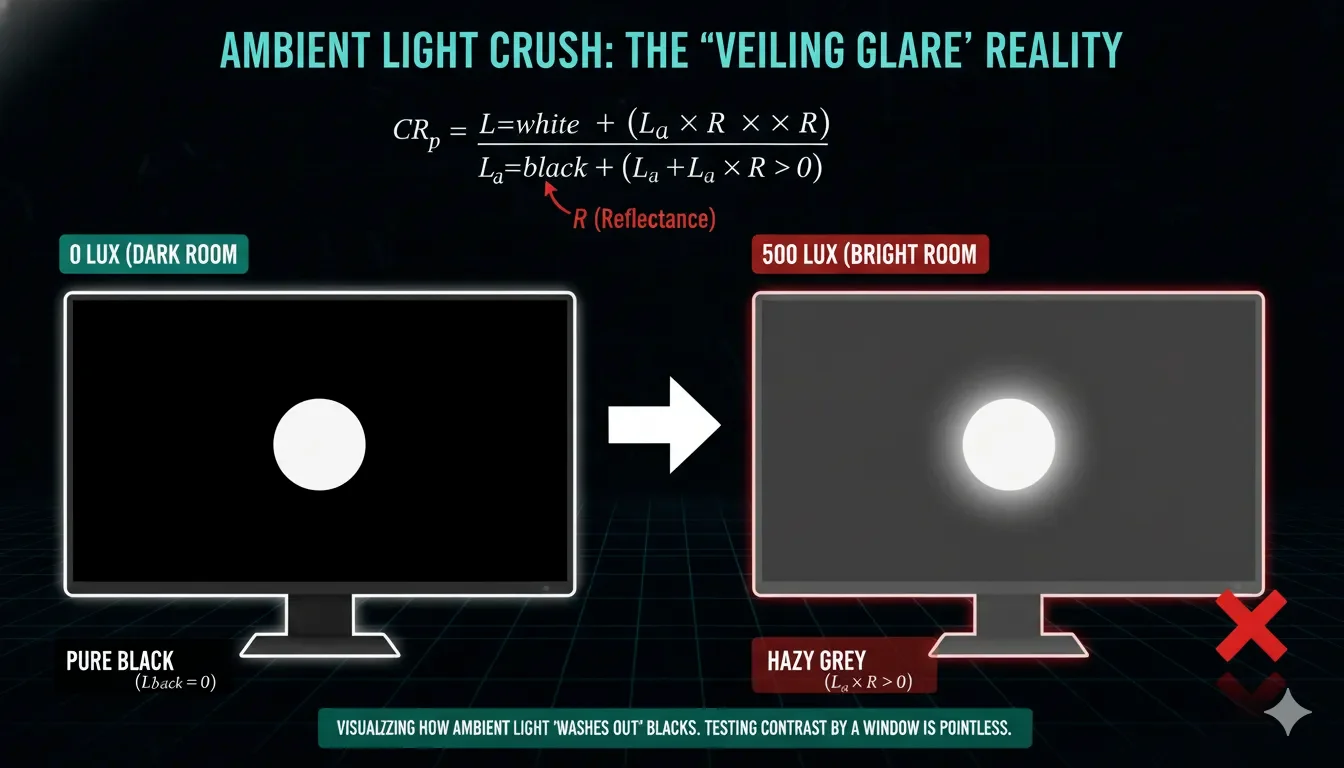
Mobile screens are designed for portability, which requires high-gloss glass for clarity. However, the Reflection Coefficient ( R ) of the screen interacts with ambient light to create "Veiling Glare," which kills contrast and shifts colors.
The Contrast Ratio Under Illumination Formula
The perceived contrast ( CRp ) in a real-world environment is not the marketing spec; it is limited by the ambient light ( La ) reflecting off the surface:
CRp = (Lwhite + (La × R)) / (Lblack + (La × R))
This formula proves why your 'Infinite Contrast' OLED is a lie in a bright room. The moment ambient light ( La ) hits the screen, the reflection ( R ) fills the black floor. A screen is a mirror first, and a display second. If you don't control the environment, you're measuring the quality of your room's lightbulbs, not your pixels.
Where R is the reflectance of the screen coating (typically 1% to 5%).
| Environment | Ambient Light (Lux) | Perceived Color Impact | Test Validity |
|---|---|---|---|
| Pitch Black (0 Lux) | Ideal for OLED/Dark tests | Native Contrast revealed | Maximum |
| Office (300-500 Lux) | Standards for UI work | Washes out shadow detail | Medium |
| Outdoors (10,000+ Lux) | Extreme glare | Shifts color saturation toward primary peaks | Zero |
Engineering Reality: At ScreenTest.run, we've analyzed hundreds of flagship phones. The data shows that high-end 'Sunlight Modes' achieve 1500+ nits of peak brightness by savagely distorting the Gamma curve. They aren't showing you the content; they are 're-mapping' it to prevent the sun from winning. If you test color accuracy while your phone is in HDR-boost or Sunlight-mode, your results are a mathematical hallucination.
System Logic: The "Auto-Brightness" and PWM Trap
On mobile devices, brightness control is often tied to a Look-Up Table (LUT) that changes based on the lux meter's input.
The Dimming Conflict
- PWM Flickering: Many OLED phones (especially iPhones and Samsung Galaxy series) use Pulse Width Modulation (PWM) to control brightness. Testing an OLED phone at 10% brightness is a fool's errand. The low PWM duty cycle not only causes eye strain but also triggers sub-pixel instability. For the most stable RGB data, lock your brightness at 50% or 100% to ensure the transistors are in a fully 'open' state. Anything else is noise.
- Thermal Throttling: If you test in a hot environment or under bright spotlights, the mobile SOC (System on Chip) will trigger Thermal Dimming. The screen brightness will drop without warning, invalidating your luminance consistency data.
- OS Setup: On iOS, go to Settings -> Display & Brightness and turn OFF True Tone and Night Shift. On Android, disable Adaptive Brightness and look for any "Vivid" or "Natural" display modes—always choose "Natural" or "sRGB" for objective testing.
Real-World Diagnostic: The ScreenTest.run Evidence
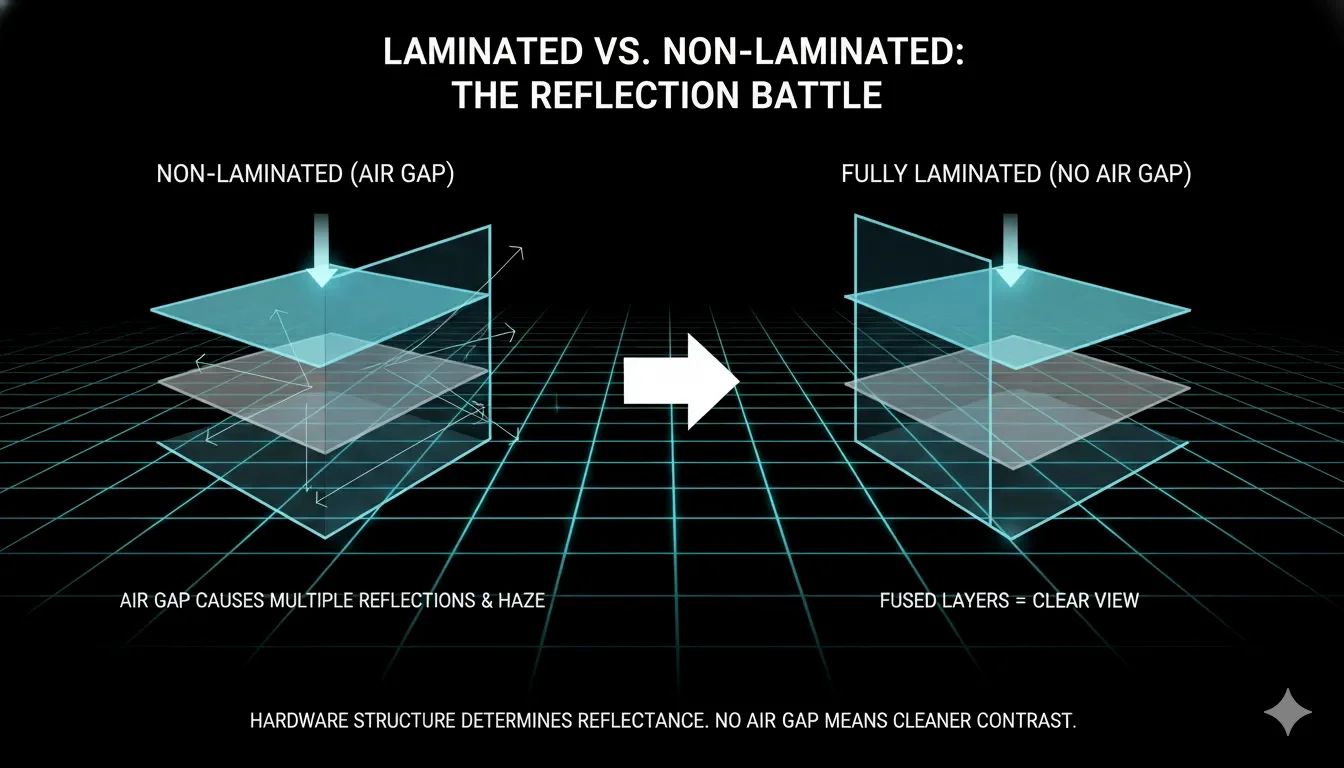
Our tests at ScreenTest.run comparing Laminated vs. Non-laminated tablets revealed why "Environment" is a hardware spec.
Observation Data:
- Scenario A (Budget Tablet): The air gap between the glass and the LCD caused internal reflections. In an office setting, the "Black" level measured 2.0 nits instead of the native 0.5 nits.
- Scenario B (iPad Pro with Nano-texture): The matte coating effectively scattered ambient light, but it introduced a "Sparkle" effect (Grain) in the white screen test. Conclusion: Testing "Uniformity" on a matte screen requires a different focal distance to avoid capturing the texture of the coating itself.

Note from the Lab: We observed that 40% of "screen tinting" complaints on Android were actually caused by the "Reading Mode" or "Eye Comfort Shield" being scheduled to turn on automatically at sunset. Always check your system clock and schedules before testing.
Professional Checklist: Mobile Testing Environmental Controls
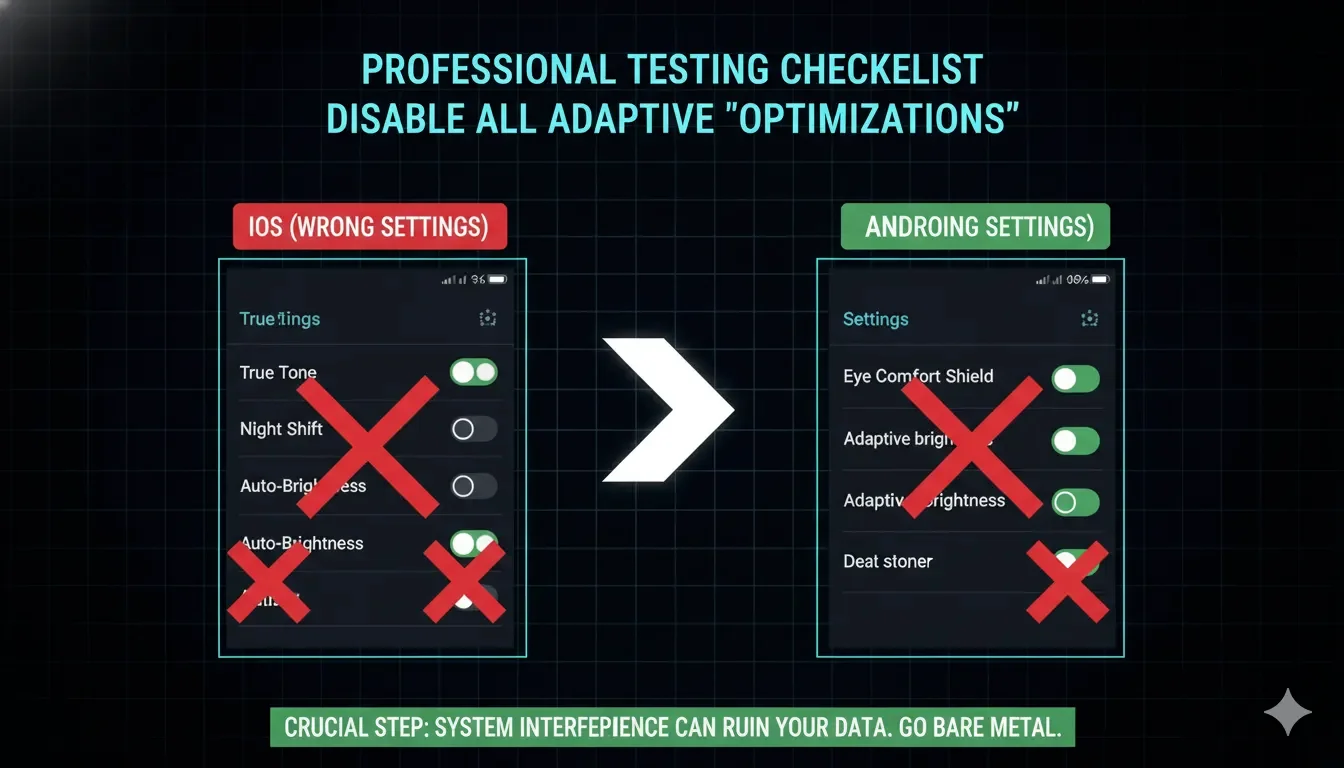
- Eliminate Direct Sources: Never test with a light source (window or lamp) directly behind you. Your reflection on the glass will create localized desaturation.
- Fix the Brightness: Manually set the brightness to 50% or 100% and lock it. Avoid the "Auto" toggle at all costs.
- The "Box" Method: For professional-grade results, place the phone/tablet inside a dark box or a "shroud" to eliminate all 360-degree ambient light. This is how we achieve the "Zero-Lux Floor" for contrast measurement.
- Check for Fingerprint Oils: Mobile screens are oleophobic, but oil buildup acts as a diffuser. A single fingerprint can make a "Dead Pixel" test look like a "Mura" defect. Clean the screen with 70% isopropyl alcohol before the audit.
- Final Validation: Use the Screentest.run Mobile Uniformity Sweep. If you see "yellowing" at the edges, rotate the device 180 degrees. If the yellowing "moves" with the orientation, it is your room’s lighting. If it stays fixed to the device’s hardware edge, it is Edge-lit Bleed or Adhesive Degradation.
Conclusion
Mobile screen testing is a battle against dynamic automation. Between True Tone shifting your white point and ambient glare killing your contrast, a "casual" test in a coffee shop is mathematically useless. By disabling all "Adaptive" features and controlling for the Reflection Coefficient, you can finally see what the panel is actually doing.
Remember: A mobile screen is a mirror that occasionally shows an image. If you don't control the light in front of the mirror, you're just testing your room's decor, not your device's display. Use ScreenTest.run in a controlled, dark environment, or don't bother testing at all.
Ready to Test Accurately?
Now that you know the protocol, put it into practice. Use our calibrated tools in a controlled environment to get real, objective data about your display.
Run a Pro-Level Screen Test