For gaming, 144Hz usually feels smoother and more responsive than 60Hz, especially in shooters, racing games, and any game with fast camera movement. It is not magic, though. The benefit depends on your game, GPU performance, panel response time, and whether you can consistently render enough frames.
Before buying a monitor, test your current setup with the Frame Rate Test and confirm your actual display output with the Refresh Rate Test.
What Changes Between 60Hz and 144Hz
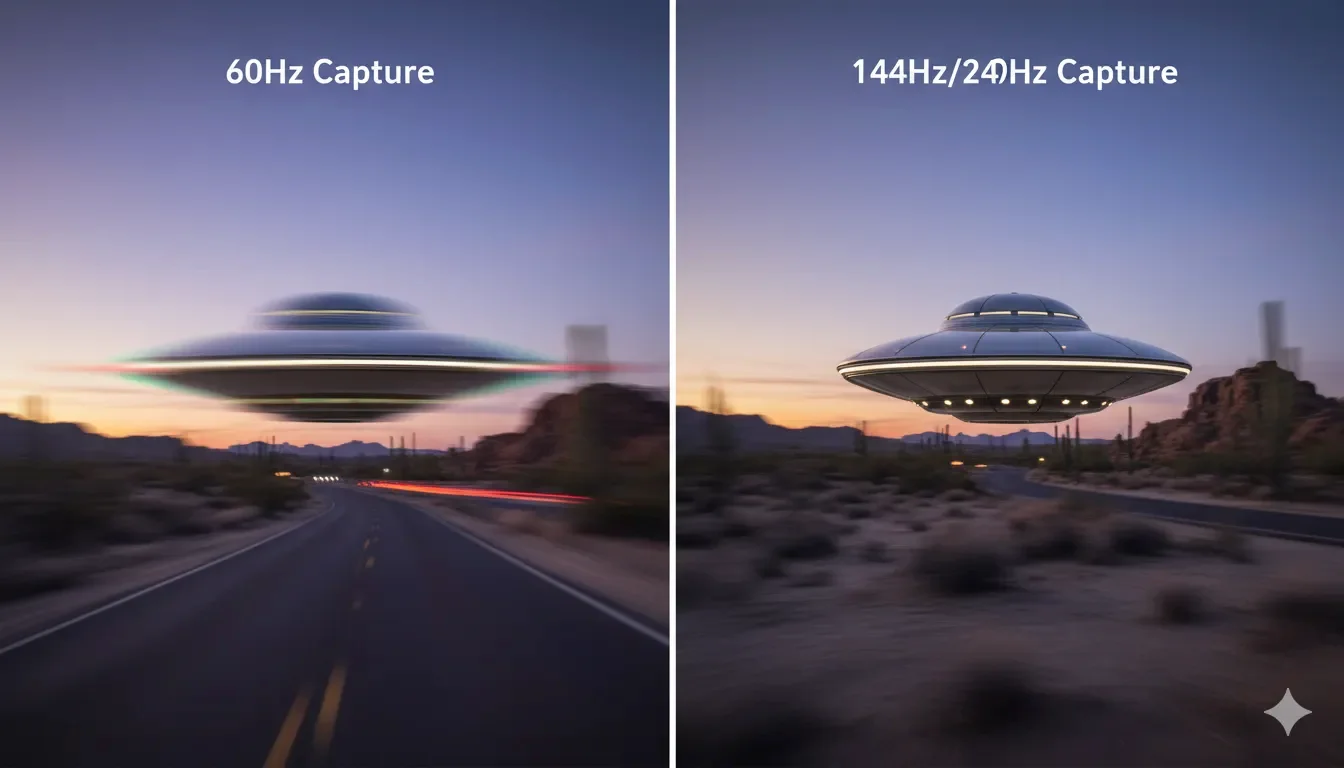
A 60Hz screen refreshes every 16.67 ms. A 144Hz screen refreshes every 6.94 ms. That shorter interval makes mouse movement, camera pans, and target tracking feel more immediate. The improvement is easiest to notice when the game is also producing frames near the monitor's refresh rate.
| Refresh rate | Frame interval | Best fit |
|---|---|---|
| 60Hz | 16.67 ms | Casual games, console-style play, office use |
| 144Hz | 6.94 ms | Most PC gamers and mixed-use setups |
| 240Hz | 4.17 ms | Competitive players with high FPS hardware |
| 360Hz+ | 2.78 ms or lower | Specialized esports setups |
When 144Hz Is Worth It
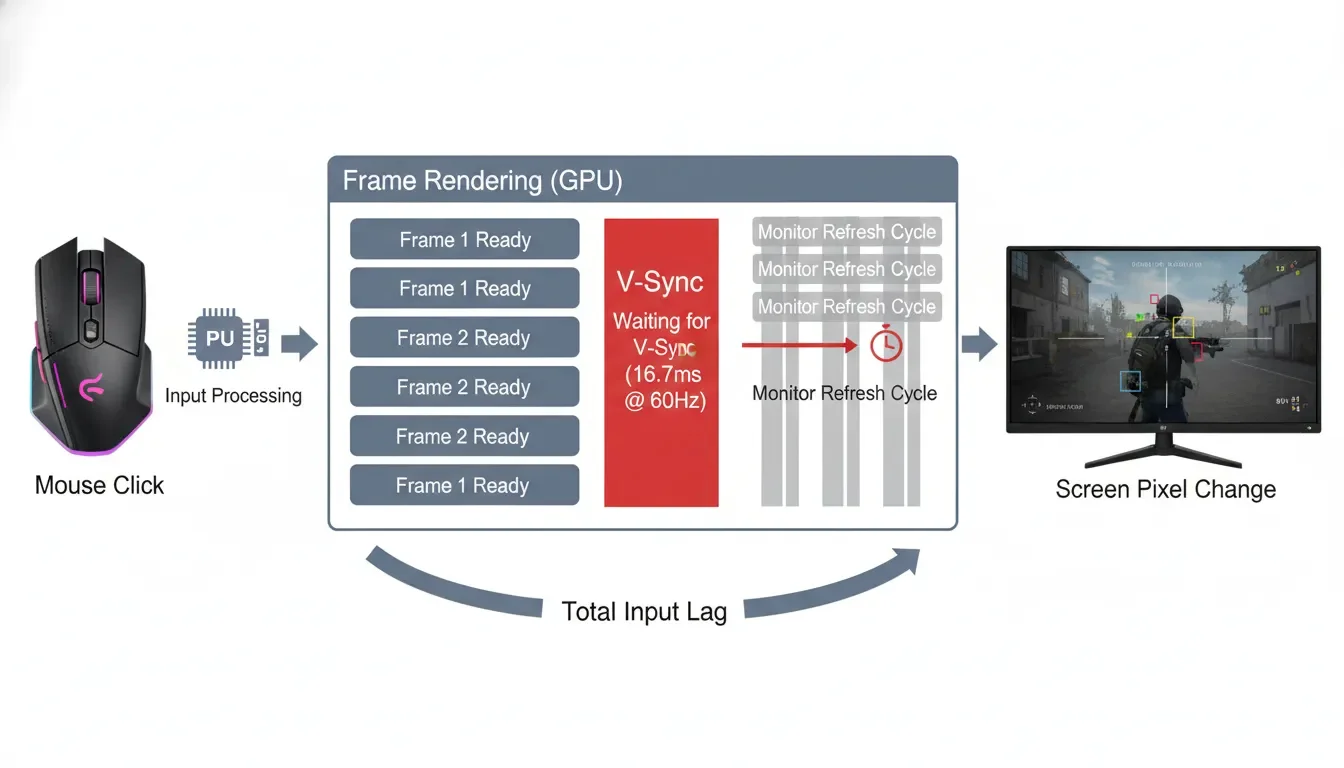
144Hz is most worthwhile when the game responds quickly to input and your PC can keep frame times stable. FPS games, rhythm games, action titles, and fast scrolling interfaces benefit more than turn-based games or cinematic titles locked near 60 FPS.
For many players, 144Hz or 165Hz is the sensible point. It gives a clear upgrade over 60Hz without demanding the hardware budget required to feed 240Hz or 360Hz consistently.
Where 240Hz and 360Hz Fit
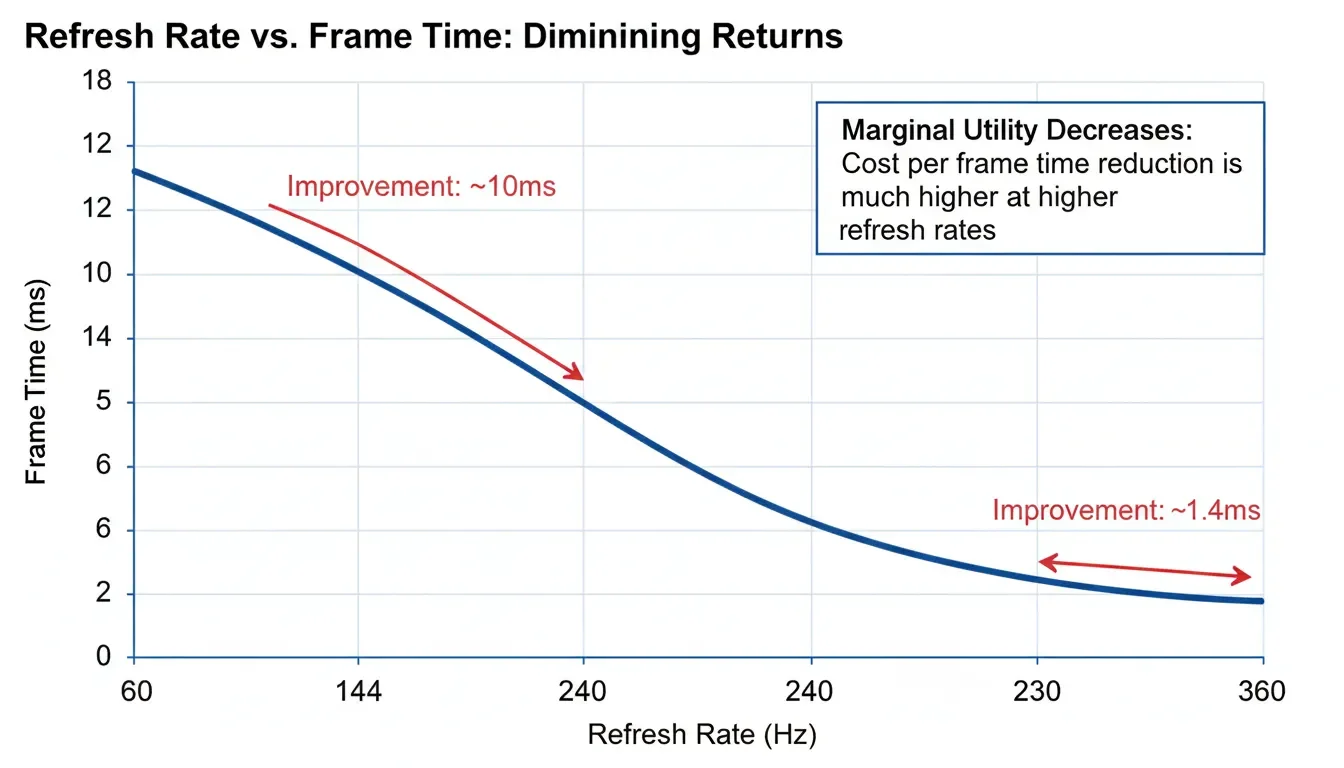
Higher refresh rates still reduce frame intervals, but each jump gives a smaller visible improvement than the first move from 60Hz to 144Hz. A competitive player with a light esports title may benefit from 240Hz or higher. A player running heavy AAA games may get more value from better contrast, HDR quality, response time, or resolution.
Do not judge a monitor by refresh rate alone. Slow pixel response can blur motion even when the refresh number is high, and aggressive overdrive can create bright inverse ghosting. Use a motion test and real gameplay before deciding.
Settings That Matter More Than the Number
- Keep FPS close to the monitor refresh rate when possible.
- Use adaptive sync if the monitor and GPU support it.
- Try a frame cap slightly below the refresh rate if you use VRR and want steadier frame pacing.
- Test overdrive modes; the highest setting is not always the cleanest.
- Check that Windows and the game are both set to the intended refresh rate.
Conclusion
144Hz is a meaningful gaming upgrade for most PC players, but it works best as part of a balanced setup. Stable frame rate, clean pixel response, adaptive sync, and the right cable matter just as much as the number printed on the box.
FAQ
Can everyone see the difference between 60Hz and 144Hz?
Most people notice smoother cursor movement and camera motion, but the size of the benefit varies by game, eyesight, input device, and frame-rate stability.
Is 240Hz much better than 144Hz?
It can be better for competitive games, but the jump is smaller than going from 60Hz to 144Hz and it requires higher, steadier FPS.
Should I buy 360Hz for casual gaming?
Usually no. For casual or mixed use, a better 144Hz or 165Hz panel is often a stronger overall choice than a cheaper panel chasing a very high refresh number.
Related Tests and Guides
Test Your Actual Refresh Rate
Make sure your monitor is really running at the refresh rate you selected.
Check Refresh Rate