If your 144Hz monitor is stuck at 60Hz on Windows 11, the cause is usually somewhere in the signal chain: the cable, the port, the monitor mode, the GPU setting, or the app used to test it. Start with the simple checks before reinstalling drivers or changing advanced settings.
Use the Refresh Rate Test after each change. Windows can show one value while a browser or game behaves differently, so verify the result instead of relying on one settings screen.
Check the Cable and Port First
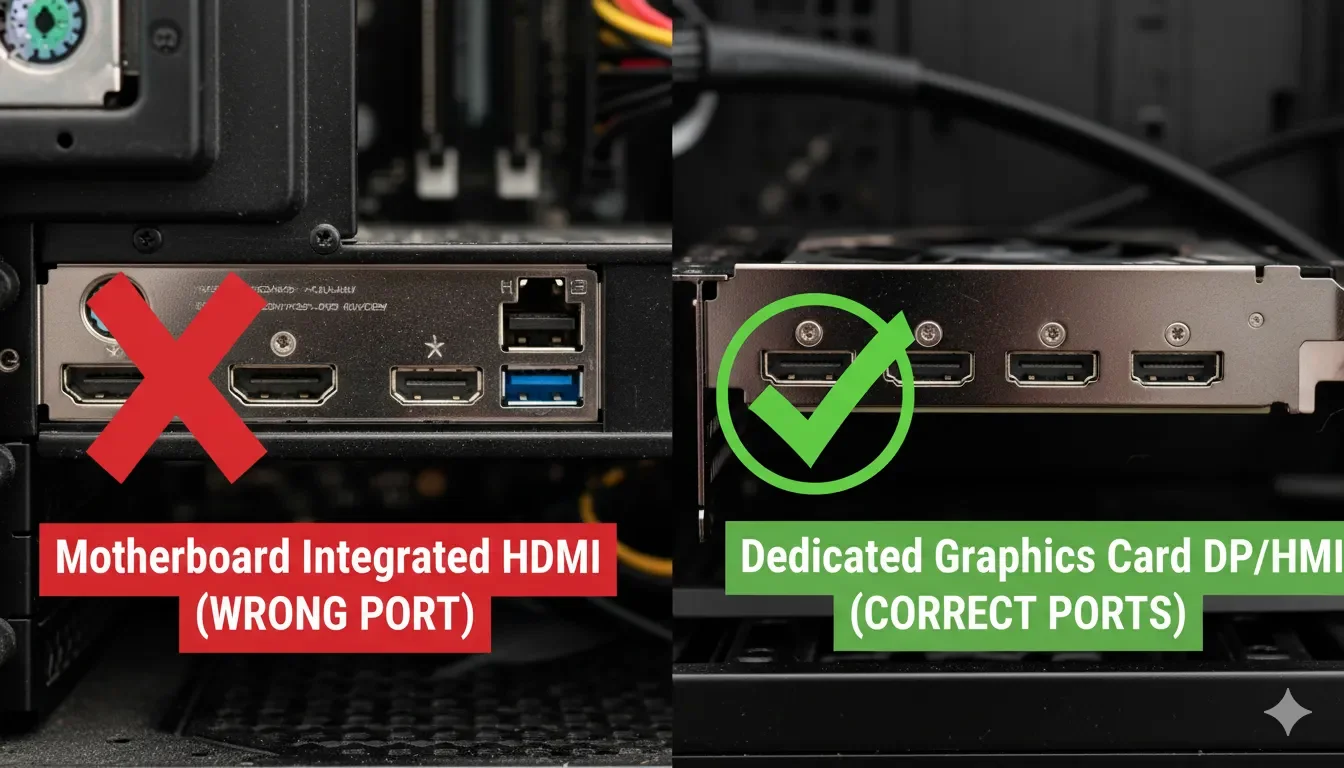
The most common reason a high-refresh monitor falls back to 60Hz is that the current connection cannot carry the resolution, refresh rate, and color settings you selected. This can happen with an older HDMI cable, the wrong port on a desktop PC, a weak adapter, or a monitor input that is set to a compatibility mode.
- Connect the monitor directly to the graphics card, not the motherboard video output on a desktop PC.
- Try DisplayPort if your monitor and GPU support it, especially at 1440p or 4K.
- Avoid HDMI splitters, capture cards, cheap USB-C adapters, and KVMs until the monitor works correctly with a direct cable.
- Open the monitor's on-screen menu and check whether DisplayPort 1.4, HDMI enhanced mode, or overclock mode needs to be enabled.
| Setup | Likely result | What to check |
|---|---|---|
| 1080p at 144Hz | Often works on many modern HDMI or DP connections | Cable age and monitor input mode |
| 1440p at 144Hz | More sensitive to cable and port limits | Prefer DisplayPort or a known high-speed HDMI path |
| 4K at 120Hz/144Hz | Requires newer ports and often compression support | Check GPU, monitor, cable, and color depth together |
Set the Refresh Rate in Windows 11
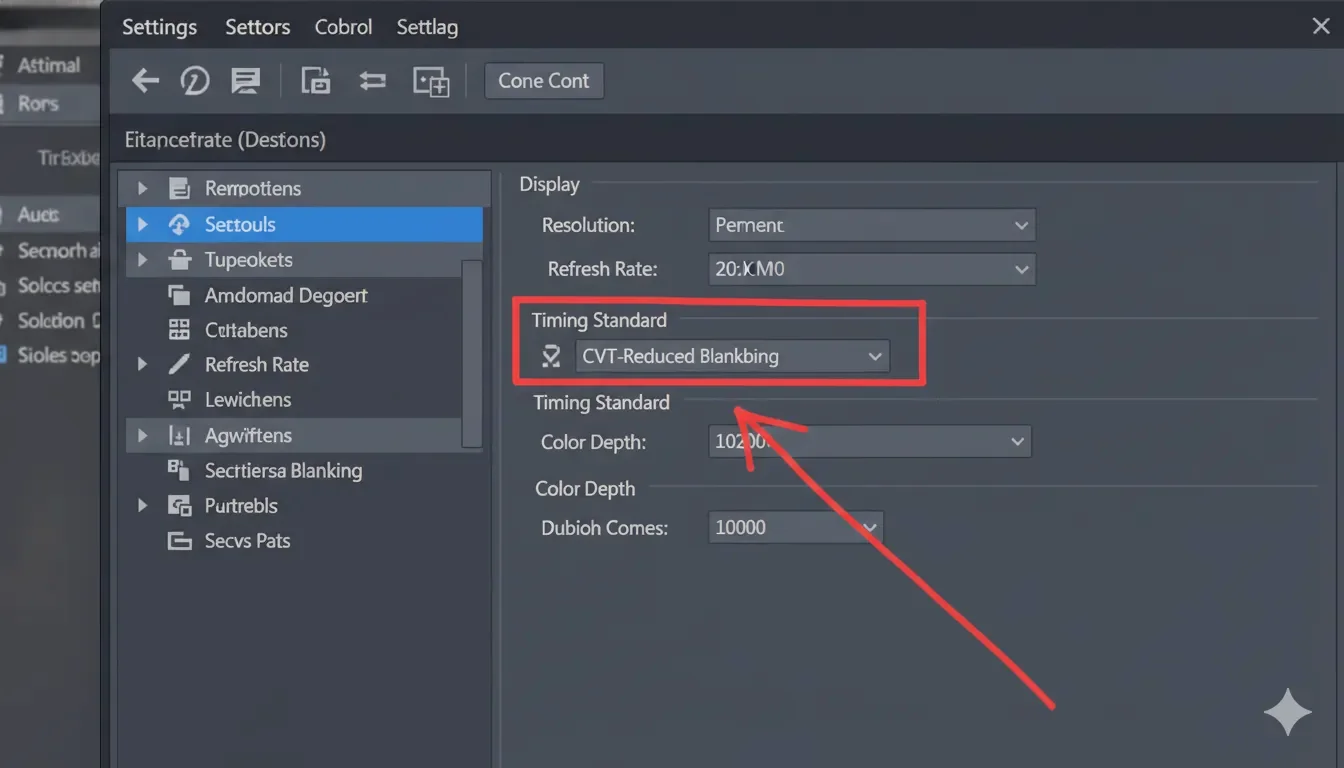
After the hardware path is clean, check Windows itself. Go to Settings -> System -> Display -> Advanced display, choose the correct monitor, and select the highest refresh rate available. If you use a laptop, plug it into power while testing so battery-saving settings do not interfere.
If 144Hz does not appear, open the NVIDIA Control Panel, AMD Software, or Intel Graphics Command Center and check the refresh rate there. Some systems expose the correct mode in the GPU tool before Windows shows it in the regular display page.
Reduce Settings That Consume Bandwidth
A monitor may support 144Hz, but not at every combination of resolution, HDR, bit depth, and chroma format. If the option disappears, temporarily turn off HDR and try 8-bit color. This is not the final ideal setting; it is a diagnostic step that tells you whether bandwidth is the bottleneck.
Multi-monitor setups can also complicate testing. Disconnect the secondary monitor for a minute, set the main display to 144Hz, then reconnect the second screen. Mixed 60Hz and 144Hz desktops are common, but they make troubleshooting noisier.
Check Drivers, Browser Rendering, and Game Settings
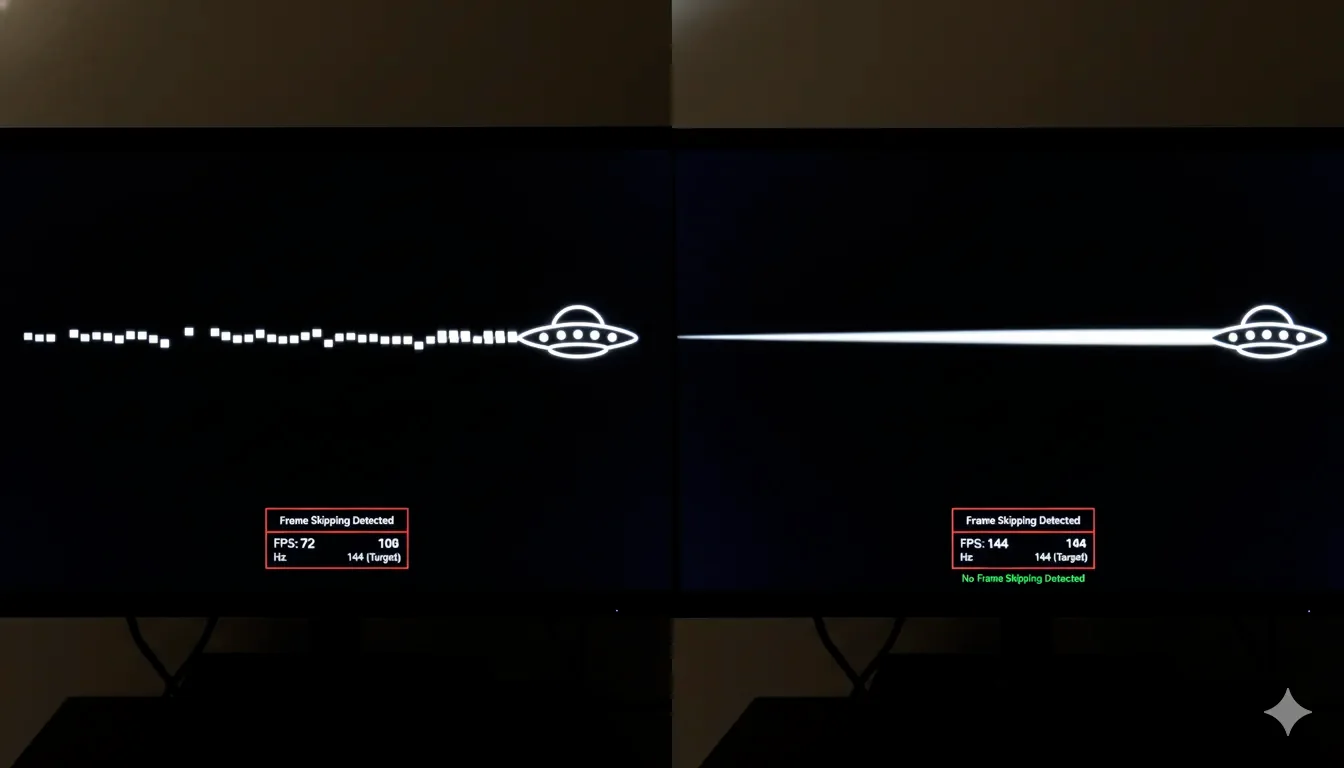
If Windows reports 144Hz but motion still looks choppy, the problem may be app-level rendering. Update the GPU driver, restart the browser after changing hardware acceleration, and check whether the game is capped by V-Sync, frame limiters, borderless-window behavior, or power-saving modes.
For browser tests, compare the Refresh Rate Test with the Frame Rate Test. The first tells you the display timing; the second helps spot skipped frames or browser stutter.
Conclusion
A 144Hz monitor stuck at 60Hz is usually fixable once you isolate the weak link. Check the physical connection first, then Windows and GPU settings, then app-level caps. If the monitor only works at 144Hz after lowering HDR or color depth, the hardware path is probably short on bandwidth.
FAQ
Why does Windows 11 only show 60Hz?
The usual causes are an older cable, the wrong port, a monitor input mode that is not enabled, a driver issue, or a resolution/color setting that exceeds the connection's bandwidth.
Can a bad HDMI cable limit a 144Hz monitor?
Yes. A cable can display an image while still failing at higher refresh rates, higher resolutions, HDR, or 10-bit color.
Why does my browser test still look choppy after setting 144Hz?
The display may be set correctly while the browser is dropping frames. Restart the browser, enable graphics acceleration, and compare with a separate frame-rate test.
Related Tests and Guides
Verify the Fix
After each change, confirm the actual output instead of guessing from the settings menu.
Run the Refresh Rate Test