Why Your Monitor Looks Grey During Black Tests: The Truth About Contrast Ratio

Ever run a black screen test only to see a disappointing grey glow? You're not alone. This phenomenon, often called "IPS glow" or "backlight bleed," is rooted in the fundamental physics of your display panel. This guide breaks down why your monitor fails to produce true black and what you can do about it.

Key Takeaways

  • The "grey glow" on a black screen is a physical hardware limitation of LCD technology (especially IPS panels), not a software bug.
  • A monitor's true quality is defined by its static contrast ratio (the "black floor"), not dynamic contrast marketing gimmicks.
  • Incorrect GPU settings, like "Limited" Dynamic Range, can crush your contrast and make the problem much worse.

The "Valve" Problem: A Real-World Failure Scenario

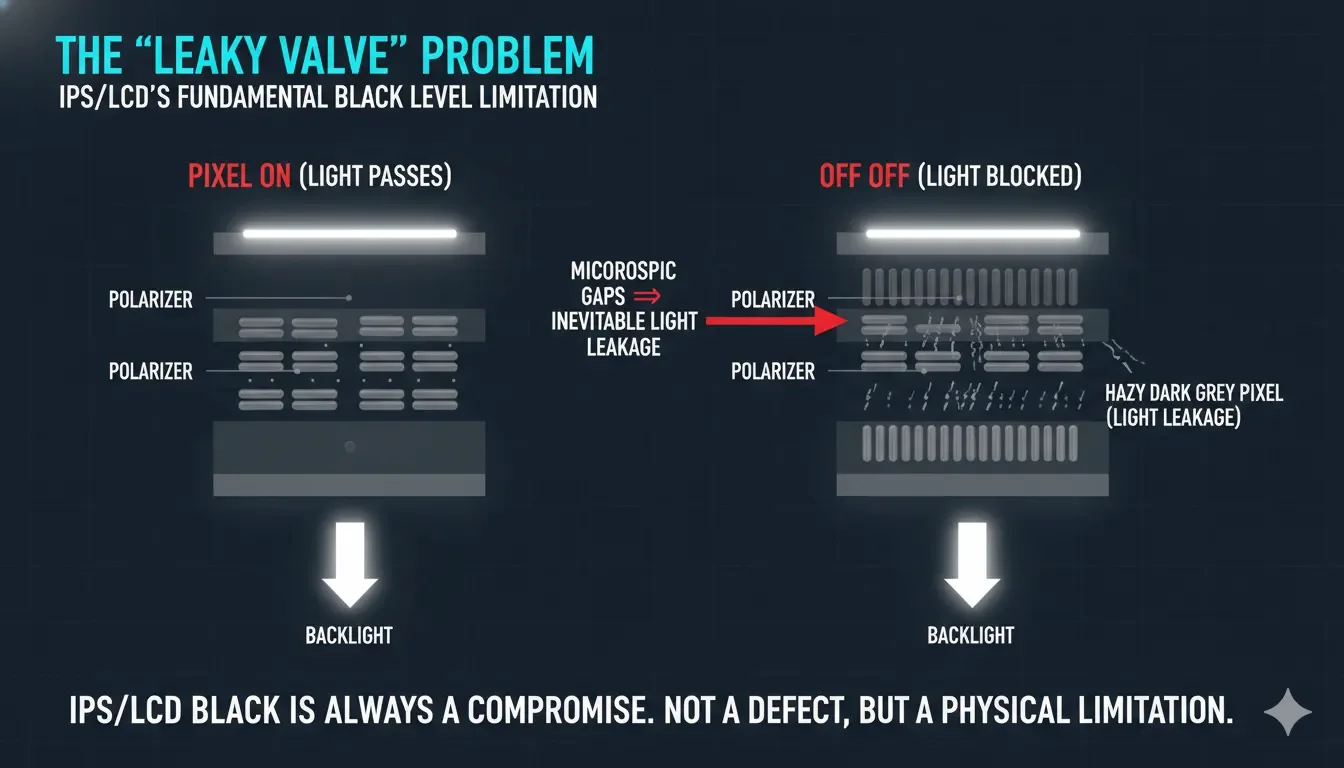
A common failure observed in standard IPS office monitors (e.g., HP Z-series or entry-level Dell P-series) is the "Milky Black" phenomenon. Even when the software sends a RGB (0, 0, 0) signal, the screen emits a noticeable glow. This happens because a Liquid Crystal Display (LCD) does not generate light; it attempts to block the light from an Always-On Backlight. Think of the liquid crystals as a window blind: no matter how tightly you close them, some light always "leaks" through the slats. For a professional UI designer, this "grey floor" isn't just a visual nuisance—it will compress the color space's dynamic range, causing shadow detail to be "washed out" by the background backlight.

Before you troubleshoot your driver settings, run the Absolute Contrast Range Test. If your "black" is brighter than the monitor's bezel, you are facing a physical hardware limitation.

The Physics of Contrast: Why Panels Are Not Equal

The reason your IPS monitor looks "greyer" than a VA panel or a TV is rooted in the Liquid Crystal Alignment physics.

The Contrast Ratio Calculation

Contrast ratio (CR) is the ratio of the luminance of the brightest white (Lw) to the darkest black (Lb) the screen can produce:

CR = Lwhite / Lblack

The math is brutal: A monitor with 1000 nits of brightness but a 1 nit black floor (1000:1) will look flatter and cheaper than a 300 nit monitor with a 0.03 nit black floor (10000:1). In display engineering, the 'floor' defines the quality, not the 'ceiling'.

In an LCD, Lb is determined by the Extinction Ratio of the polarizers and the alignment precision of the crystals.

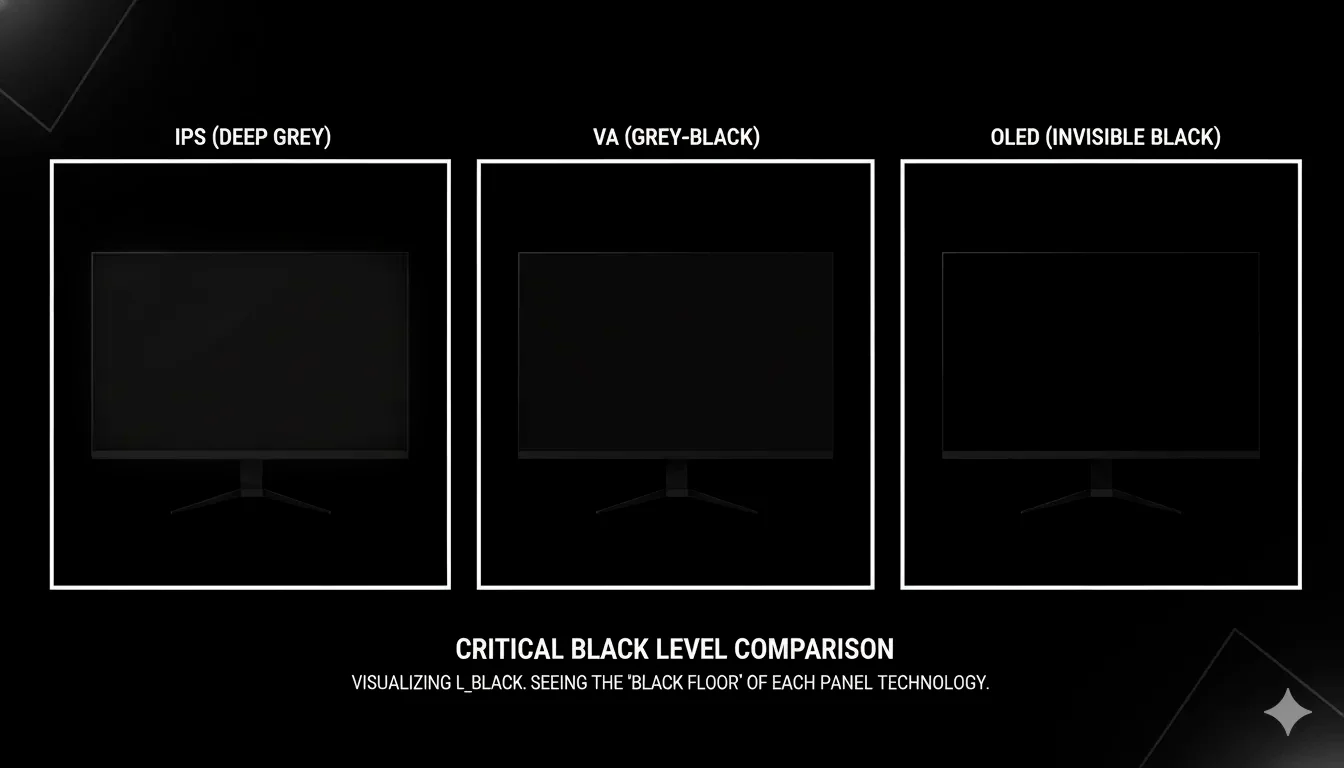
Panel Type Native Contrast Ratio Physical Reason for "Greyness"
IPS (In-Plane Switching) 700:1 - 1,200:1 Horizontal crystal rotation leaks light at the edges.
VA (Vertical Alignment) 2,500:1 - 5,000:1 Vertical alignment blocks light more effectively.
IPS Black 2,000:1 Improved polarizer tech reduces the "grey floor."
OLED ∞:1 No backlight; Lb is physically 0.

Engineering Reality: At ScreenTest.run, our lab data consistently shows that a brand-new IPS panel rarely holds its '1000:1' marketing claim for long. After approximately 1,000 hours of thermal stress from the backlight, we often see a 15% degradation in the extinction ratio of the polarizers, meaning your 'grey floor' literally rises over time. If your monitor looks milkier today than it did a year ago, you aren't imagining it—it's physics.

System Logic: Dynamic Contrast vs. Static Contrast

To hide the physical "greyness," DCR is a marketing scam designed to put '1,000,000:1' on the box. It doesn't improve the panel; it just manipulates the light bulbs. For professional work, DCR is a disaster that destroys color consistency. Turn it off immediately.

The DCR Deception

  • The Logic: When the scene is dark, the monitor’s firmware dims the entire backlight.
  • The Failure: This makes the black look "blacker," but it also crushes the highlights. If you have a white cursor on a black background, DCR creates a pumping effect where the screen brightness fluctuates wildly.
  • OS Setup: In Windows 11, the "Content Adaptive Brightness Control (CABC)" can conflict with your monitor's internal DCR.
Path: Settings -> System -> Display -> Brightness

Always turn off "Change brightness automatically when lighting changes" during a contrast audit to see the Static Contrast—the true measure of your panel's quality.

Real-World Diagnostic: The ScreenTest.run Evidence

Our tests at ScreenTest.run using a Konica Minolta Display Color Analyzer reveal that room lighting is the biggest "falsifier" of contrast.

Observation Data:

  • Scenario A (Bright Office): An IPS monitor with 1000:1 contrast looks "perfectly black." This is because the ambient light reflected off the screen's surface is brighter than the backlight leakage.
  • Scenario B (Dark Room): The same monitor looks "dark grey." This is the True Black Floor.

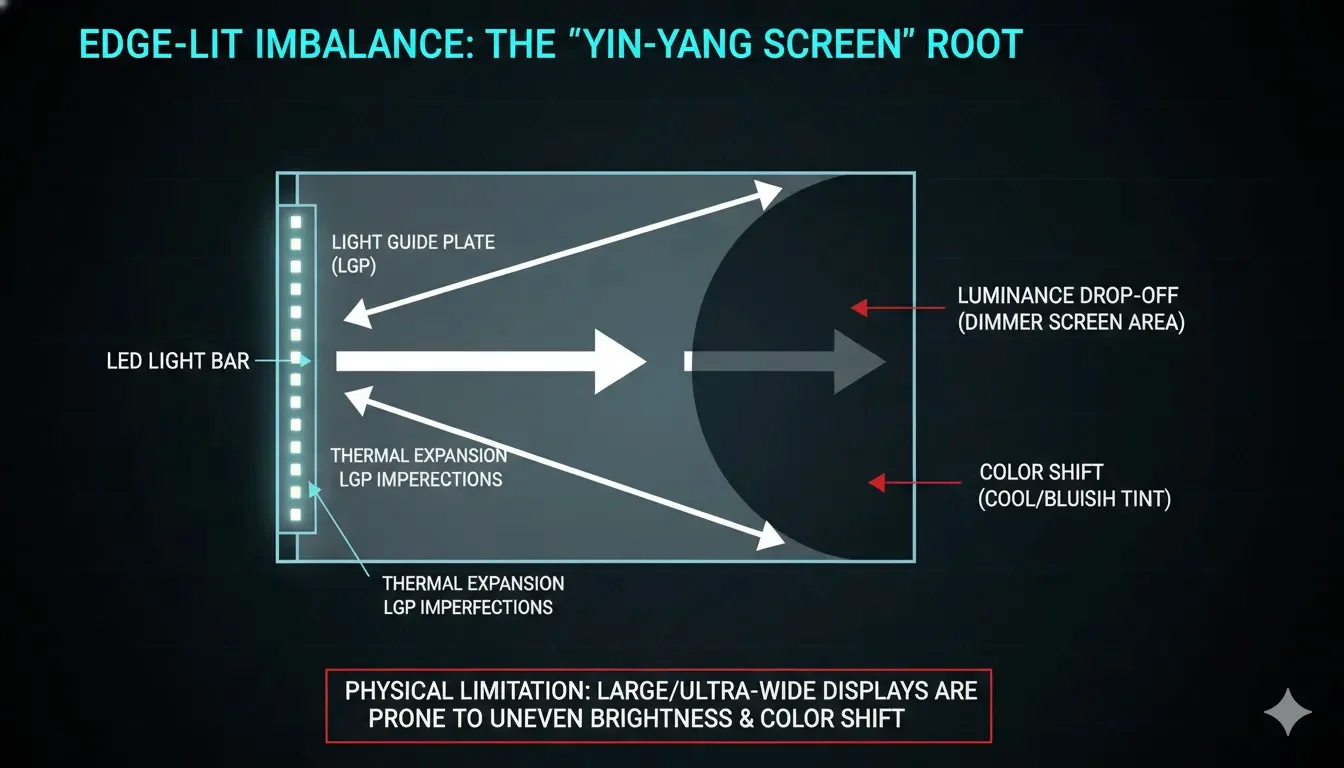
Note from the Lab: If your screen looks grey in patches rather than a uniform sheet, you aren't just dealing with low contrast; you have Clouding (Mura). This is a manufacturing defect where the internal layers are not perfectly flat, causing localized pressure that "opens" the liquid crystals. This is often checked with a backlight bleed test.

Professional Checklist: How to Improve Your "Blacks"

  • Check the "Black Level" Setting: Many monitors have an OSD setting called "HDMI Black Level" or "Black Equalizer." If set too high, it "lifts" the blacks into grey to help gamers see in shadows, but it ruins contrast for everything else.
  • Calibrate the GPU Range: Go to NVIDIA/AMD Control Panel -> Change Resolution -> Output Dynamic Range. Ensure it is set to "Full (0-255)", not "Limited (16-235)." If you connect via HDMI, Windows often treats your professional monitor like a 10-year-old TV, defaulting to 'Limited Range.' This single setting can destroy your contrast more than a bad panel ever could. Check your GPU control panel before you blame the hardware.
  • Use Bias Lighting: Placing a dim LED strip (6500K) behind your monitor can improve your perceived contrast. By giving your eyes a brighter reference point, the "grey" black on the screen appears darker to your brain.
  • Gamma Correction: Ensure your Gamma is set to 2.2. A Gamma of 1.8 will make the entire image look "washed out" and grey.
  • Final Validation: If you can't see the difference between 0%, 1%, and 2% black, your monitor is "Crushing Blacks" to compensate for its high backlight floor.

Conclusion

"发灰" (Greyness) is the physical signature of an LCD monitor's struggle with light control. While VA and IPS Black technologies have pushed the boundaries, the "milky" look is an inherent part of the liquid crystal architecture. By correctly setting your GPU Dynamic Range and using tools like ScreenTest.run to identify static contrast limits, you can at least ensure your software isn't making a hardware limitation even worse. Remember: if your work requires absolute deep blacks, no amount of software "magic" will turn an IPS panel into an OLED. Manage your expectations, and manage your ambient light.

Related Diagnostics & Guides

Next Step: Diagnose Your Panel

Now that you understand the theory, it's time to see the reality. Run our dedicated tests to see your monitor's true black floor and identify any uniformity issues.

Run Black Screen Test