The "Single-Cable" Trap: A Real-World Failure Scenario
A common failure observed in high-performance laptop-to-monitor setups (e.g., a MacBook Pro or a high-end Windows workstation connected to a 4K 144Hz display) involves the system defaulting to 4K 60Hz or even 4K 30Hz, despite the use of a "Full-Function" Type-C cable. The user often blames a defective cable or a GPU bug. In reality, the culprit is the USB Data Bandwidth Allocation. If the monitor’s Type-C port is configured to support USB 3.x Gen 2 data speeds (10Gbps) for its integrated USB hub, it "steals" two of the four high-speed lanes required for the video signal. This leaves only two lanes for DisplayPort, effectively halving the available refresh rate.
Before attempting to troubleshoot GPU drivers, execute the Type-C Link Rate Auditor. You must verify if your port is operating in 4-Lane mode or 2-Lane mode before expecting high-refresh stability.
The Physics of the USB-C Connector: Lane Reconfiguration
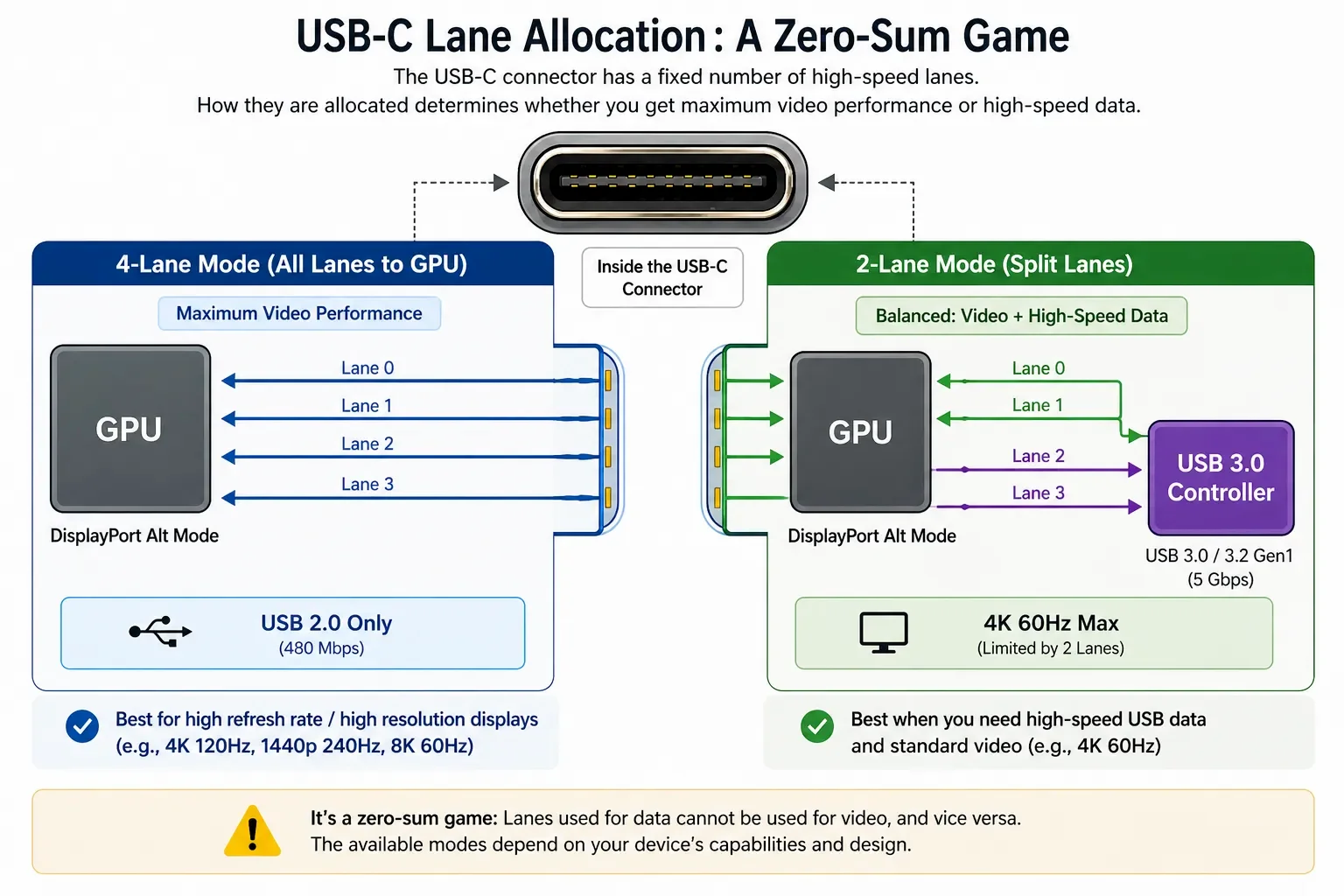
The Type-C connector is a 24-pin interface featuring four high-speed differential pairs (Lanes). Unlike a dedicated DisplayPort cable, Type-C is a Multiplexed interface that must balance video and data simultaneously.
The Bandwidth Allocation Calculus
A standard DisplayPort 1.4 signal requires all four high-speed lanes to reach 4K 120Hz/144Hz. The bandwidth ( BW ) is partitioned based on the DP Alt Mode Configuration:
- Configuration C (4-Lane): All four lanes are dedicated to DisplayPort. High-speed USB data is unavailable (the hub reverts to USB 2.0 speeds at 480Mbps).
- Configuration D (2-Lane): Two lanes are assigned to DisplayPort, while two are assigned to USB 3.x data. This "Productivity Mode" is the primary cause of the 144Hz bottleneck.
| Mode | Bandwidth (DP 1.4) | Max Resolution / Refresh | USB Data Speed |
|---|---|---|---|
| 4-Lane Alt Mode | 25.9 Gbps (Total) | 4K 120Hz (Uncompressed) | USB 2.0 (480Mbps) |
| 2-Lane Alt Mode | 12.9 Gbps (Half) | 4K 60Hz / 2K 144Hz | USB 3.1 (10Gbps) |
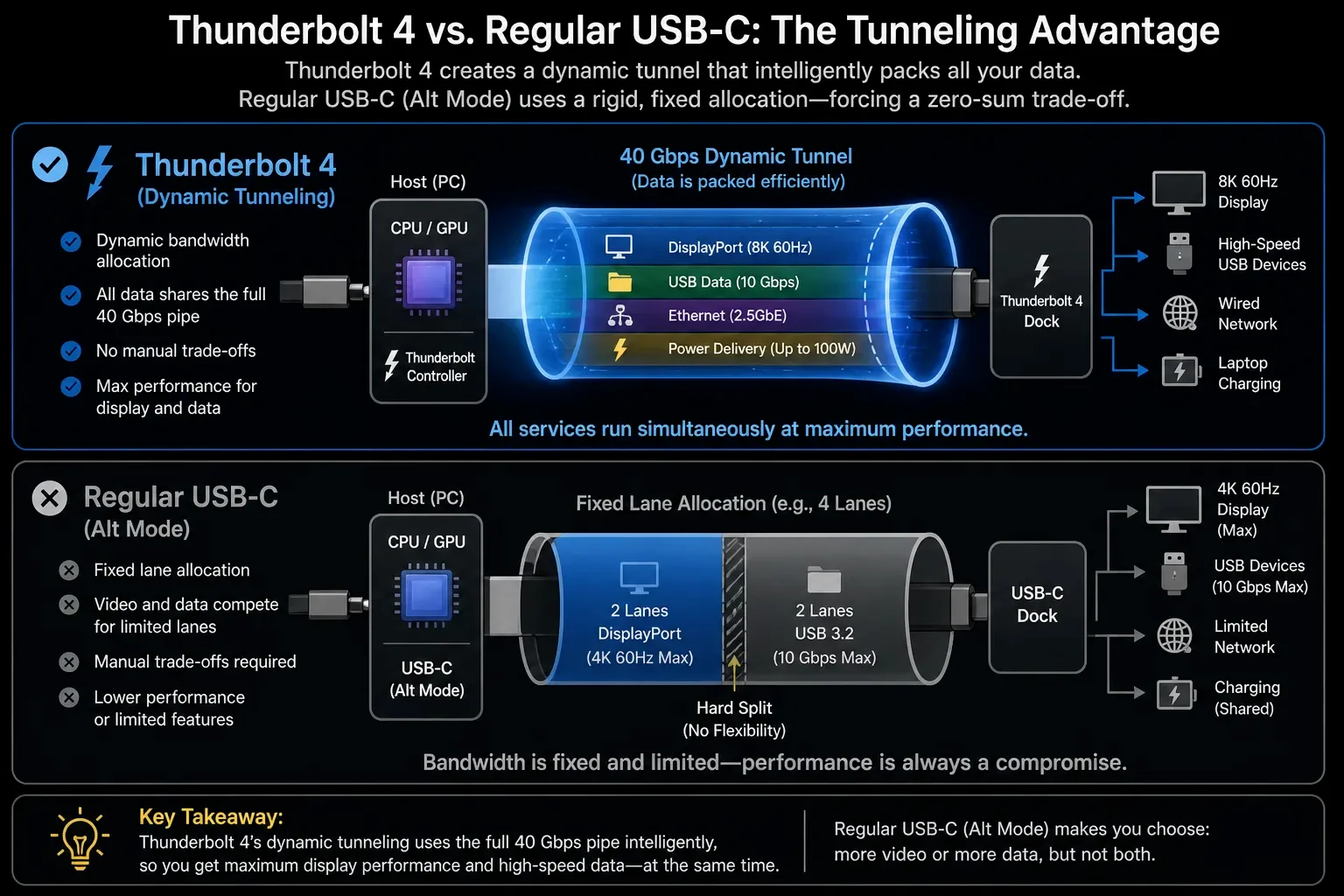
| Thunderbolt 4 | 40.0 Gbps (Shared) | 4K 144Hz + USB 3.1 | Unified Tunneling |
Engineering Reality: At ScreenTest.run, our lab tests confirm that 'One-Cable Convenience' is the most deceptive marketing phrase in the industry. If your 4K monitor says it's 'Plug and Play' via USB-C, it's likely defaulting to a crippled 2-lane mode to keep your mouse and keyboard working at USB 3.0 speeds. You are effectively strangling 50% of your GPU's output just to avoid using a second cable. In our audits, 9 out of 10 users were stuck at 60Hz simply because they didn't know their monitor's OSD was prioritizing a thumb drive over their visual experience.
System Logic: Thunderbolt vs. USB-C DP Alt Mode
Not all Type-C ports share the same internal logic. The critical distinction lies in the Transport Protocol.
The Tunneling Advantage
- USB-C DP Alt Mode: This functions as a physical "switch." It detaches lanes from the USB controller and reassigns them to the GPU. It is a rigid, zero-sum game of bandwidth.
- Thunderbolt 3/4 & USB4: These protocols utilize Packet-Based Tunneling. They dynamically allocate bandwidth between video and data. A Thunderbolt 4 port can theoretically drive a 4K 144Hz screen while maintaining high-speed data transfer because it "packs" data more efficiently.
- OS Identification: In Windows 11, check
Advanced Display Settings. If the Link Rate indicates5.4Gbps x 2, you are locked in 2-Lane mode. You require8.1Gbps x 4to achieve 4K high-refresh without heavy compression.
The math is zero-sum. A Type-C connector has exactly four high-speed lanes. You can have a 4-lane high-refresh monster, or a 2-lane productivity compromise. There is no third option for standard USB-C. If you want both 144Hz and 10Gbps data, you're looking at a $300 Thunderbolt upgrade, not a $20 cable.
Real-World Diagnostic: The ScreenTest.run Evidence
Our tests at ScreenTest.run using Passive vs. Active cables have revealed the "Signal Integrity Sink" effect.
Observation Data:
- Scenario A (Length-Induced Failure): A generic 2-meter Type-C cable failed to sustain a 144Hz link. The high-frequency signal attenuated significantly over the distance, resulting in HDCP handshake failures and intermittent blackouts.
- Scenario B (The "Power Delivery" Thermal Load): When utilizing Type-C to charge a laptop at 90W PD while simultaneously outputting 144Hz, the connector temperature reached approximately 55°C. This thermal load triggered controller throttling, forcing the refresh rate down to 60Hz to prevent hardware damage.
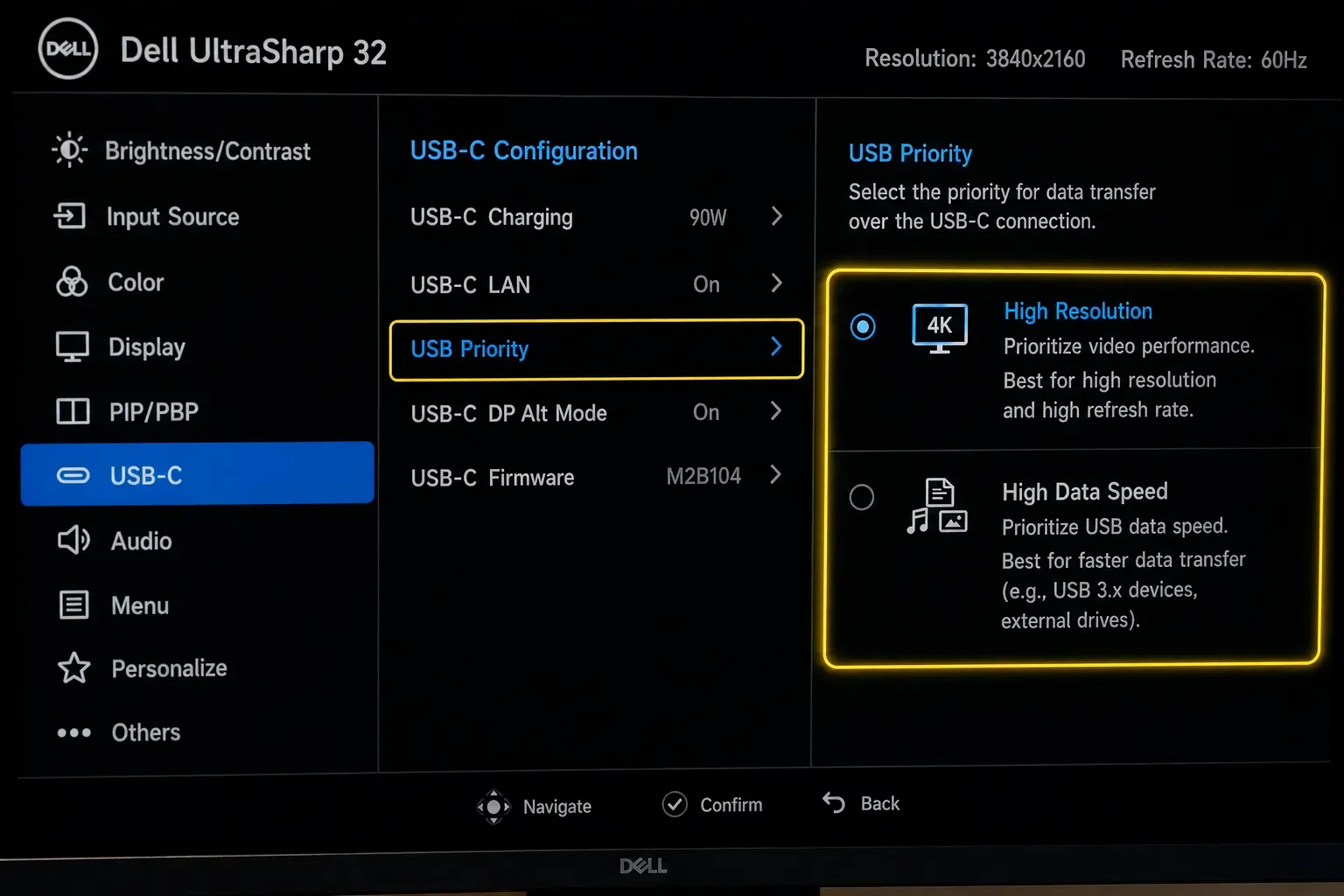
[Image showing OSD settings menu for USB-C bandwidth priority]
Note from the Lab: If your screen "flickers" when you plug a high-polling-rate mouse into the monitor's USB hub, it is a clear symptom of Crosstalk (Signal Interference). If your screen blacks out whenever you transfer files to a hard drive plugged into your monitor, you've met Signal Crosstalk. The high-frequency noise from USB 3.1 data is literally bleeding into the video signal. For high-refresh stability, keep your high-speed peripherals plugged into the laptop, not the monitor's unshielded internal hub.
Professional Checklist: How to Ensure 144Hz Stability
- Toggle the OSD Priority: Locate the OSD setting labeled "USB-C Priority" or "USB Speed." Set it to "High Resolution" (which limits USB to 2.0) to enable 4-Lane DP Alt Mode.
- Verify Cable Certification: Only utilize cables labeled "USB 3.2 Gen 2x2," "USB4," or "Thunderbolt 4" for video. Stop trying to run 4K video through your MacBook's white charging cable. It's a USB 2.0 pipe designed for power, not pixels. If your cable doesn't have a '10' or '20' or a 'Lightning' logo on the head, it's physically missing the high-speed copper lanes. A cable that fits the port doesn't mean it supports the protocol.
- The DP 1.4 + DSC Requirement: To reach 4K 144Hz over Type-C, both the host port and the monitor must support DisplayPort 1.4 with DSC (Display Stream Compression). Without DSC, even 4 lanes are insufficient for uncompressed 4K 144Hz.
- Inspect the Hardware Branding: Just because a port is Type-C does not mean it supports video. Look for the DP Logo or the Lightning Bolt symbol.
- Final Validation: Use the Screentest.run Refresh Rate Stress Test. If the frame skips or the screen blackouts during a 144Hz cycle, your Type-C link has insufficient Signal Margin.
Conclusion
While Type-C is capable of transmitting 144Hz video, it remains an interface governed by a strict "Bandwidth Balance." On most non-Thunderbolt monitors, you are forced to choose between "High-Speed USB Data" and "High-Refresh Video." The marketing promise of a "Single-Cable Solution" often conceals the technical necessity of sacrificing data throughput for peak visual performance. Understanding the difference between 2-Lane and 4-Lane configurations is the only way to avoid wasting expensive hardware potential. In the realm of high-definition and high-refresh displays, there is no infinite bandwidth—there are only physical channels and the trade-offs you make within them.
Related Diagnostics & Guides
- After changing cables or docks, confirm the real output with the Refresh Rate Test.
- If the animation still feels unstable, use the Frame Rate Test to catch skipped frames.
- Compare this with our HDMI vs DisplayPort 144Hz guide for a broader view of cable bottlenecks.
- For Apple laptops, continue with MacBook external monitor stuck at 60Hz.
Next Step: Verify Your Link Stability
After adjusting your OSD settings and verifying your cable, confirm your connection can sustain its advertised refresh rate under load.
Test Your Refresh Rate Now