Buying a used monitor can save you a significant amount of money, but the second-hand market is a minefield of hidden defects. A display that looks perfect on a colourful desktop can hide permanent, irreversible flaws. This guide uses engineering principles and diagnostic tools from our lab to help you distinguish a great deal from a future piece of electronic waste. Don't rely on the seller's claims; verify the hardware's physical health yourself using tools like our comprehensive test suite.
1. The "Ghost of Previous Use": A Real-World Failure Scenario
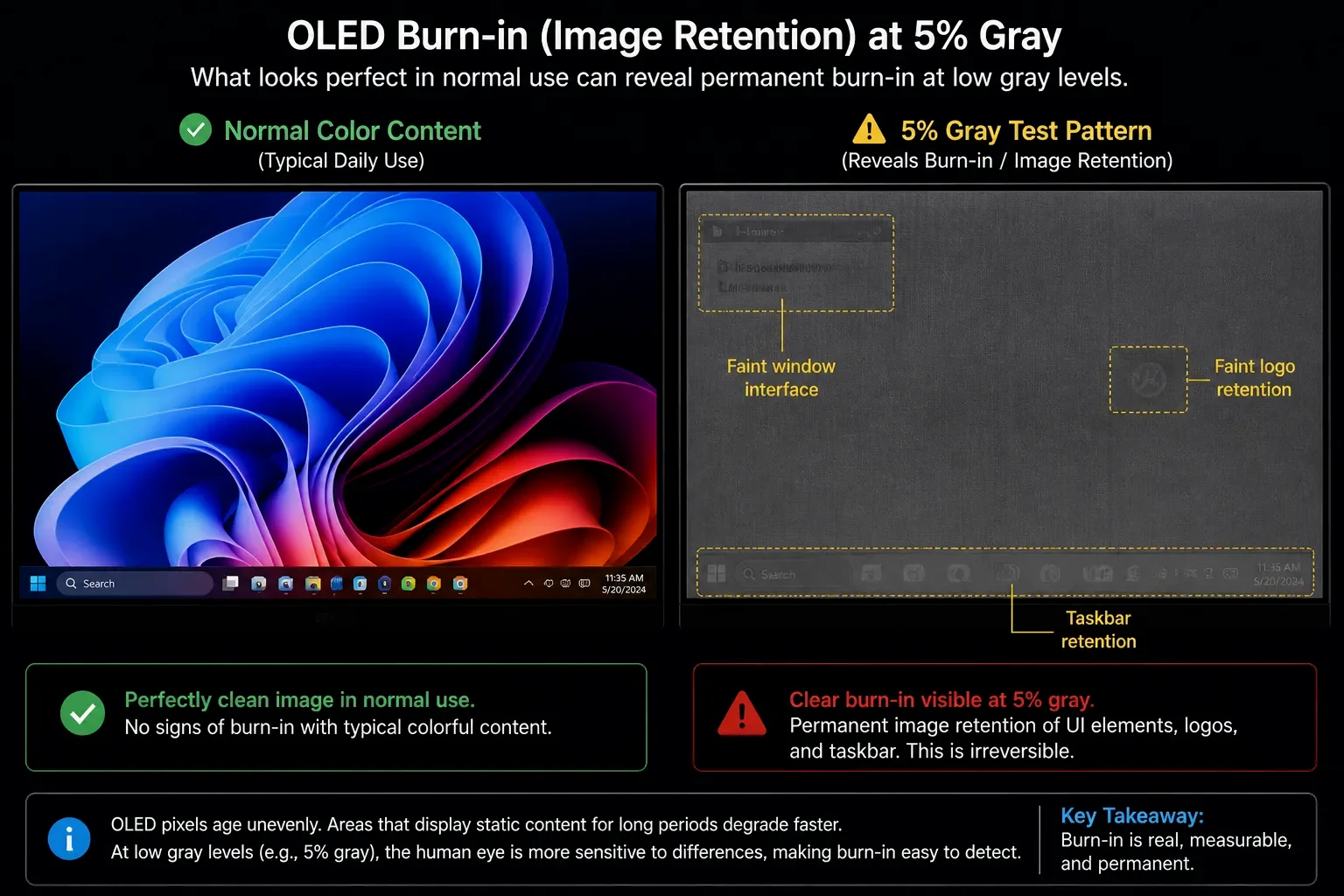
A common failure observed in high-end second-hand OLED monitors involves "Cumulative Burn-in" that is invisible on colorful desktop backgrounds but appears as a faint "shadow" on static grey or cyan screens. A seller may claim "99% new," but if the display was used as a surveillance monitor or a stock ticker for 10,000 hours, the organic materials are physically degraded. For LCDs, the primary hidden defect is backlight yellowing or diffuser delamination, which creates a "vignetting" effect in the corners.
Before you finalize the payment, run the Comprehensive Panel Health Audit. You must verify the "Hardware Age" through visual stress tests before the return window closes.
2. The Physics of Degradation: Identifying Permanent vs. Temporary Flaws
Display components age at different rates. Understanding the physics of failure allows you to negotiate a better price or reject a lemon.
The Luminance Decay Calculus
The brightness of a monitor ( L ) decreases over time ( t ) following an exponential decay curve: L(t) = L_0 × e^(-kt) Where k is the degradation constant determined by the operating temperature and voltage.
The physics is uncompromising: Every hour of 'Power-on Time' is a withdrawal from the panel's luminance bank. A monitor with 30,000 hours is physically incapable of hitting its original spec, even if it looks 'clean.' Age is not just a number; it's a degradation constant.
| Defect Type | Physical Origin | Detectability | Risk Level |
|---|---|---|---|
| Dead Pixels | Transistor failure | High (Solid Color Test) | Low (Fixed) |
| Burn-in | Non-uniform pixel aging | High (5% Grey Test) | Critical (Permanent) |
| Pressure Mura | Physical impact on LC layers | Medium (Black Test) | High (May spread) |
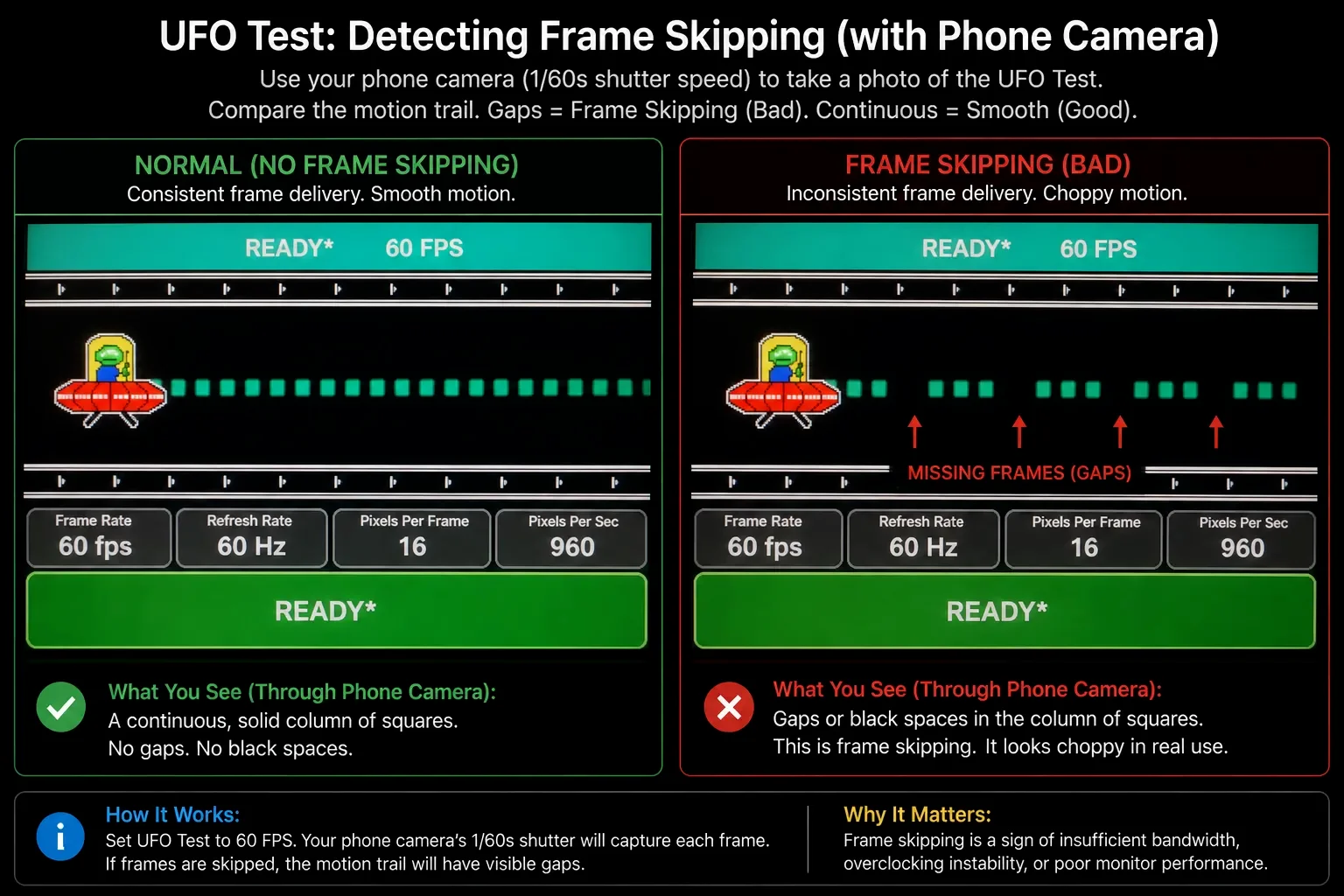
| Logic Board Lag | Aging capacitors/controller | Low (Refresh Rate Test) | Medium (Total failure) |
Engineering Reality: At ScreenTest.run, our audit of second-hand 'Professional' displays yields a grim reality: 20% of high-end Dell and Eizo units sold on the secondary market suffer from 'Thermal Bronzing'—a permanent amber tint in the panel's corners caused by 24/7 operation in poorly ventilated cubicles. This isn't a calibration issue; it's a physical breakdown of the diffuser layers. If you see 'Yellowish corners' on a white screen, no software in the world can save it. You aren't buying a 'pro' tool; you're buying a retired workhorse on its last legs.
3. System Logic: Detecting Overclocking and Frame Skipping
Many sellers "overclock" cheap 144Hz panels to 165Hz or higher to increase resale value, which can lead to stability issues.
The Frame Stability Protocol
- Frame Skipping Test: Use a high-speed camera (or your phone's Slow-Mo mode) while running a UFO Test. If the monitor is skipping frames, you will see gaps in the motion trail. This indicates a failing T-Con (Timing Controller).
- Ghosting & Overdrive: A common "hidden" repair involves replacing the original panel with a cheaper, slower compatible version.
- The Trap: The exterior looks like a high-end gaming monitor, but the response time is abysmal.
- OS Check: In Windows 11, check Advanced Display Settings. If the display is identified as "Generic PnP Monitor" and cannot reach its advertised refresh rate without flickering, the internal firmware (EDID) may have been tampered with.
4. Real-World Diagnostic: The ScreenTest.run Evidence
Our lab tests at ScreenTest.run using a 9-Point Uniformity Check on second-hand units revealed the "Repair Transparency" gap.
Observation Data: Scenario A (The "Reseated" Panel)
We tested a monitor that looked perfect until we ran a Black Level Test. Huge light leaks appeared in one corner. Check the seam between the panel and the bezel. If you see tiny pry marks or uneven light leakage in specific spots, you are looking at a 'Frankenstein' unit. Someone has replaced the backlight or the T-Con board in a non-cleanroom environment. Dust and uneven pressure are now permanent residents of your screen. A repaired monitor is never a 'factory-spec' monitor.
Observation Data: Scenario B (Sub-pixel Misalignment)
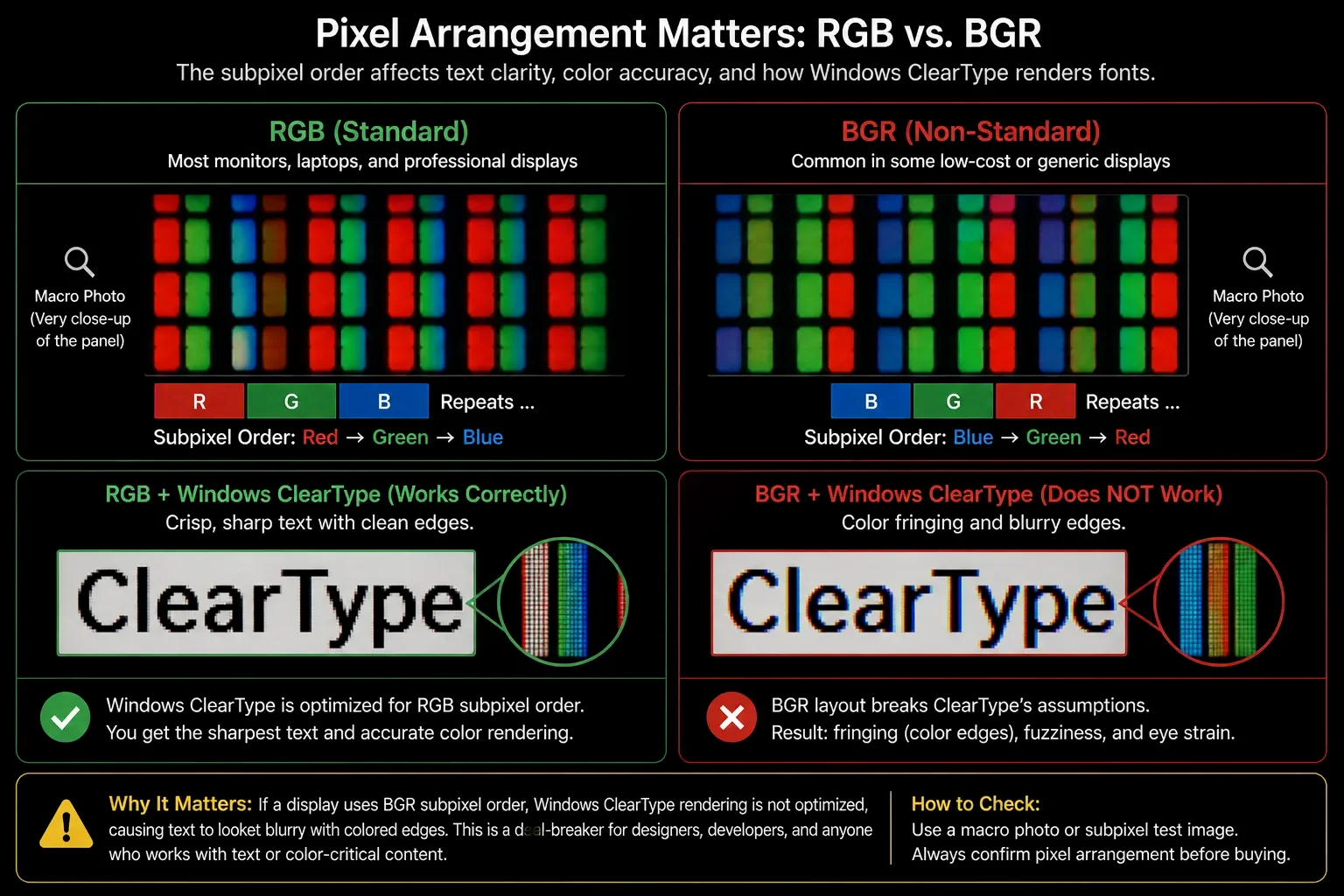
A unit appeared "blurry" despite being 4K. Under a macro lens, we found the sub-pixel layout was BGR instead of RGB, which the seller didn't disclose. This makes text rendering on Windows a nightmare for UI designers.
Note from the Lab: Always check the OSD Power-on Hours if available. While it can be reset by technicians, a high hour count (>20,000) combined with a dimming backlight is a sign that the unit is near its end-of-life.
5. Professional Checklist: The 10-Minute "On-Site" Audit
- The 5% Grey Test: If a seller won't let you run a 5% grey test, they are hiding something. This test is the X-ray of the display world. It bypasses the vibrant distractions of high-contrast images and exposes the raw uniformity of the transistors. Every vertical band and hidden ghost image will scream for attention on a grey canvas. Open a Screentest.run 5% Grey Screen. It will reveal every vertical band, burn-in mark, and uniformity issue that a pure white screen hides.
- The Color Purity Cycle: Cycle through Red, Green, and Blue. Look for "Dust Under the Glass" (looks like a pixel but moves slightly with your head) and "Polarizer Scratches."
- The Physical "Sniff" Test: Seriously. Smell the back vents. If there is a faint scent of ozone or burnt plastic, the internal power capacitors are leaking or failing.
- Interface Physical Check: Plug and unplug the HDMI/DP ports. If the screen flickers or the signal drops, the solder joints on the PCB are cracked—a common defect in monitors that were frequently moved on monitor arms.
- Final Validation: Use the Screentest.run Motion Blur Stress Test. If you see "Inversed Ghosting" (bright trails behind moving objects), the seller has cranked the Overdrive to the max to hide a slow panel.
Conclusion
Buying a second-hand monitor in 2026 is a game of Information Asymmetry. Sellers will highlight the "Zero Dead Pixel" claim while hiding the permanent Burn-in or Thermal Discoloration. By utilizing the high-sensitivity tests on ScreenTest.run—specifically the 5% Grey and Refresh Rate Stability tools—you strip away the cosmetic lies and see the physical state of the semiconductors. If a seller refuses to let you run these tests, walk away. In the second-hand market, a "good deal" on a display with hidden defects is just a delayed payment for a piece of electronic waste.
Ready to Audit a Monitor?
Don't get stuck with a lemon. Use our full suite of professional-grade display tests to verify its health before you buy.
Access All Diagnostic Tools